
PM catalog pre-selection
Before any folders or tasks exist for a SKU, a Product Manager records the catalog and production decisions on the Product Planning (NPI) board. These decisions live in a set of trigger columns at the top-level item. Once they are complete, the board automations build the LucidLink folders and create the subitem tasks for the design, video, and CG teams.
This page covers what the PM fills in for the two product kinds (decorative and functional) and how those entries hand off to the automations. The systems that react to these columns are explained once in the automation ecosystem; status meanings live in the status glossary.
The trigger columns
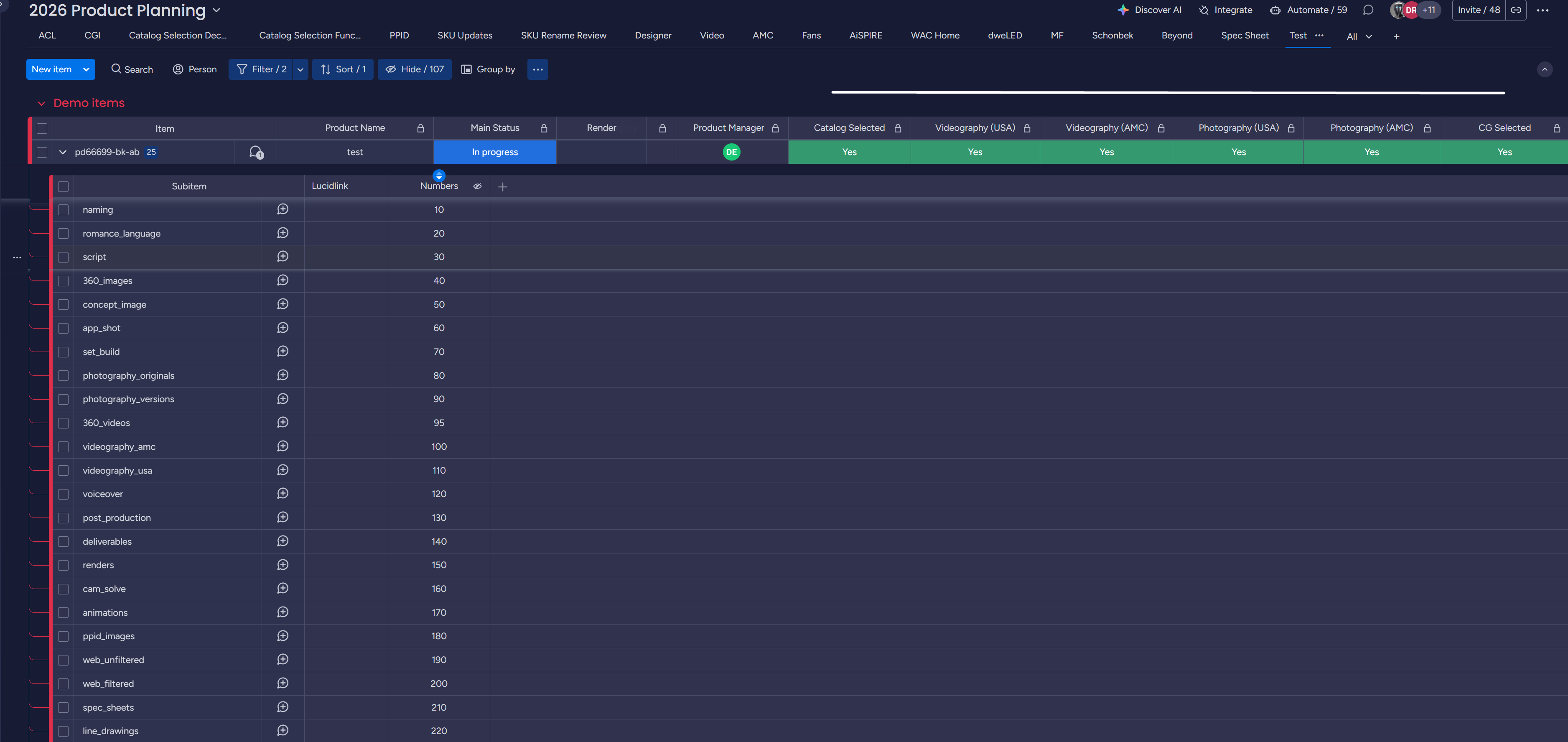
Section titled “The trigger columns”For each SKU, the Product Manager and Brand Manager decide on the following columns. Every column except AppShot Needed must hold a clear Yes or No before anything downstream can run. AppShot Needed is set for you - see App Shot Setting below.
| Column | Decision | What it means |
|---|---|---|
| AppShot Needed | Automatic | set from the App Shot Setting choice below - not filled in by hand |
| Catalog Selection | Yes / No | will this SKU be featured in the catalog? |
| Videography (USA) | Yes / No | will videography be required for this product? |
| Videography (AMC) | Yes / No | will videography be required for this product? |
| Photography (USA) | Yes / No | will photography be required for this product? |
| Photography (AMC) | Yes / No | will photography be required for this product? |
| CG Selected | Yes / No | will this require CG renders to represent the product? |
App Shot Setting (PMM only)
Section titled “App Shot Setting (PMM only)”Meredith Gratton sets this for decorative SKUs, Leigh Gice for functional. Pick one of four labels and fill in App Shot Notes - together those two entries decide whether a concept image starts.
Two of the four mean no concept image, and they are not interchangeable.
Family Shot Additional Product means this SKU appears inside another SKU’s hero
shot, so its renders or photography are still produced and the descriptive labels still
matter. Not Needed means there is no shot at all.
AppShot Needed is set for you. The automation writes that column and only the project manager can override it. You change it by picking a label here, not by editing it.
Try a combination and see what the board would do:
App Shot Setting these four decide the work
Also on the same list they never start work on their own
App Shot Notes
On the board
Nothing has been decided yet. Pick one of the four labels above.
- The brief is not optional. A hero label with
App Shot Notesleft blank starts nothing. - Pick only one of the four. Choose two and nothing happens - deliberate, so an
unclear choice never starts work on the wrong brief. Descriptive labels like
C-Hotel,R-Single Family,Editorial ShotorWAC Home Family Shotdo not count and can be added freely. Not Neededhas to stand alone. It is the one label that takes no company, not even a descriptive one: every other label describes the setting of a shot, and there is no shot. Paired with anything else it does nothing at all.- To restart something already marked
Not Needed: pickFamily Shot Additional Product, then pick the hero label again. Both steps are needed, and this round-trip is what replaces flipping AppShot Needed by hand.
Decorative SKUs
Section titled “Decorative SKUs”For decorative products the decision set is compact.
-
Fill every column you own. None can be left blank. The automation reads each column, so a blank stalls the SKU. AppShot Needed is the exception - it fills itself from App Shot Setting.
-
Focus on the catalog path. The key pair is
Catalog SelectedthenCG Selected. Any additional notes are optional and are not read by the automation. -
Mark each as Yes or No. These binary answers are what the downstream automations use to decide which folders and tasks to create.
Watch the decorative pre-selection walkthrough:
Functional SKUs
Section titled “Functional SKUs”Functional products carry a few more fields because existing assets are often reused, and some columns auto-adjust based on others.
Possible extra fields to record:
- Existing Images
- Existing Line Drawings
- Website Link (the source for assets)
- Processing and feature notes
Built-in column behavior to expect:
- If
Catalog Selected = Yes, thenProduct Videoautomatically flips toNo(videos are not produced for functional catalog items). - If
CG Selected = Yes, the related columns automatically flip toNo. - A flip to
Notriggers the relevant automation in order, so wait for each one to finish processing before changing the next.
Watch the functional pre-selection walkthrough:
How the columns drive the automations
Section titled “How the columns drive the automations”Once the trigger columns are complete, the project manager runs the automations that turn these decisions into folders and tasks. The full chain is documented in the automation ecosystem; the folder layouts the automation builds are in folder structures.
-
Folder creation. With all columns answered, set the
folder_automationcolumn toRun. MIFFED then builds the pre-templated folder structure on LucidLink for each team that needs it. Allow up to about an hour for large batches. Items leave this view once the automation has run.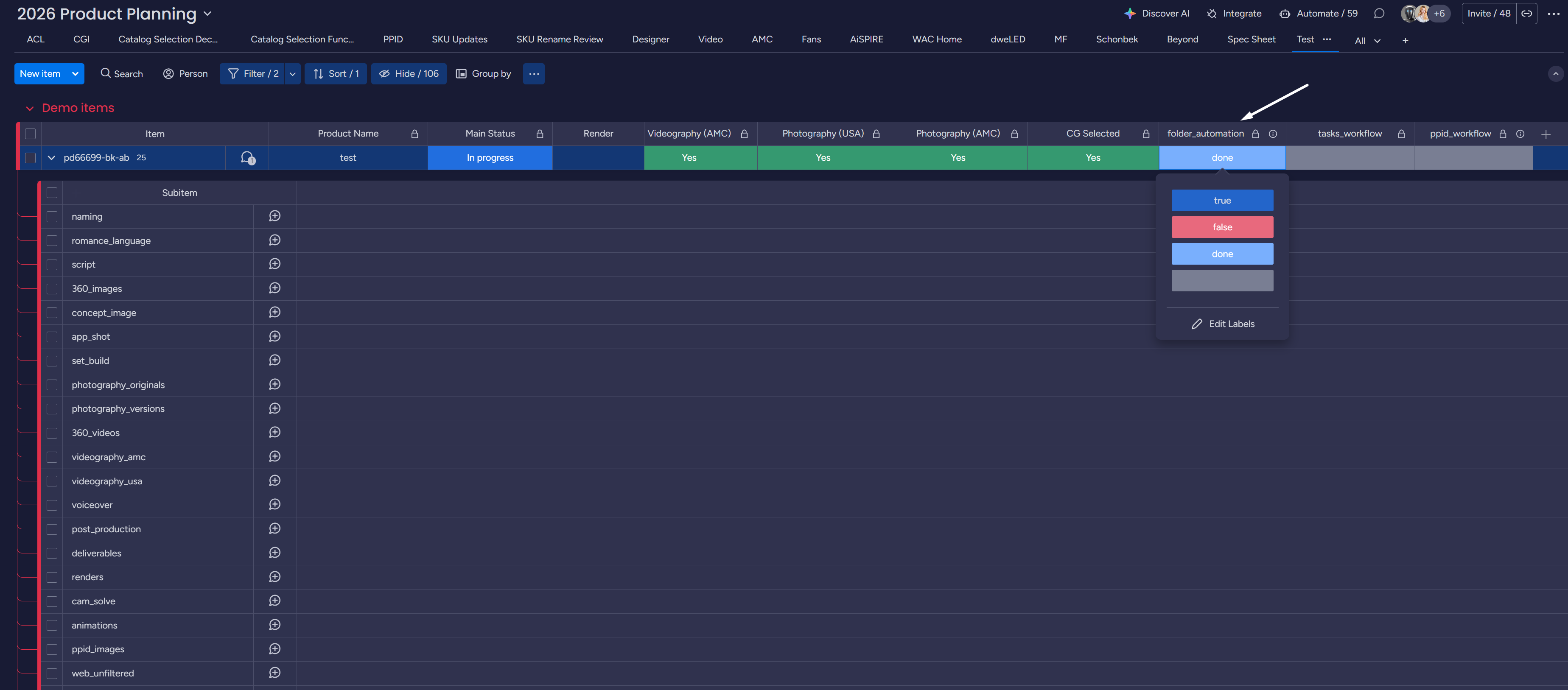
Result statuses to expect:
Status Meaning Doneall possible folders were created at all locations Failedonly some folders were created - sometimes expected (not every team needs one), but if it’s not, your pipeline supervisor should check why A
Failedresult is not always a problem - when not every team needs folders, a partial run is expected. If it is unexpected, flag it to your pipeline supervisor. To create more folders later, set any of the trigger columns to Yes and flipfolder_automationback toRun. -
Task creation. With folders in place, create the subitem tasks based on the catalog decision:
- If
Catalog Selected = Yes, fliptasks_workflowtocreate_tasksto generate the full set of catalog tasks (including the app-shot work). - If
Catalog Selected = No, flipppid_workflowtocreate_tasksto generate the lighter PPID task set.
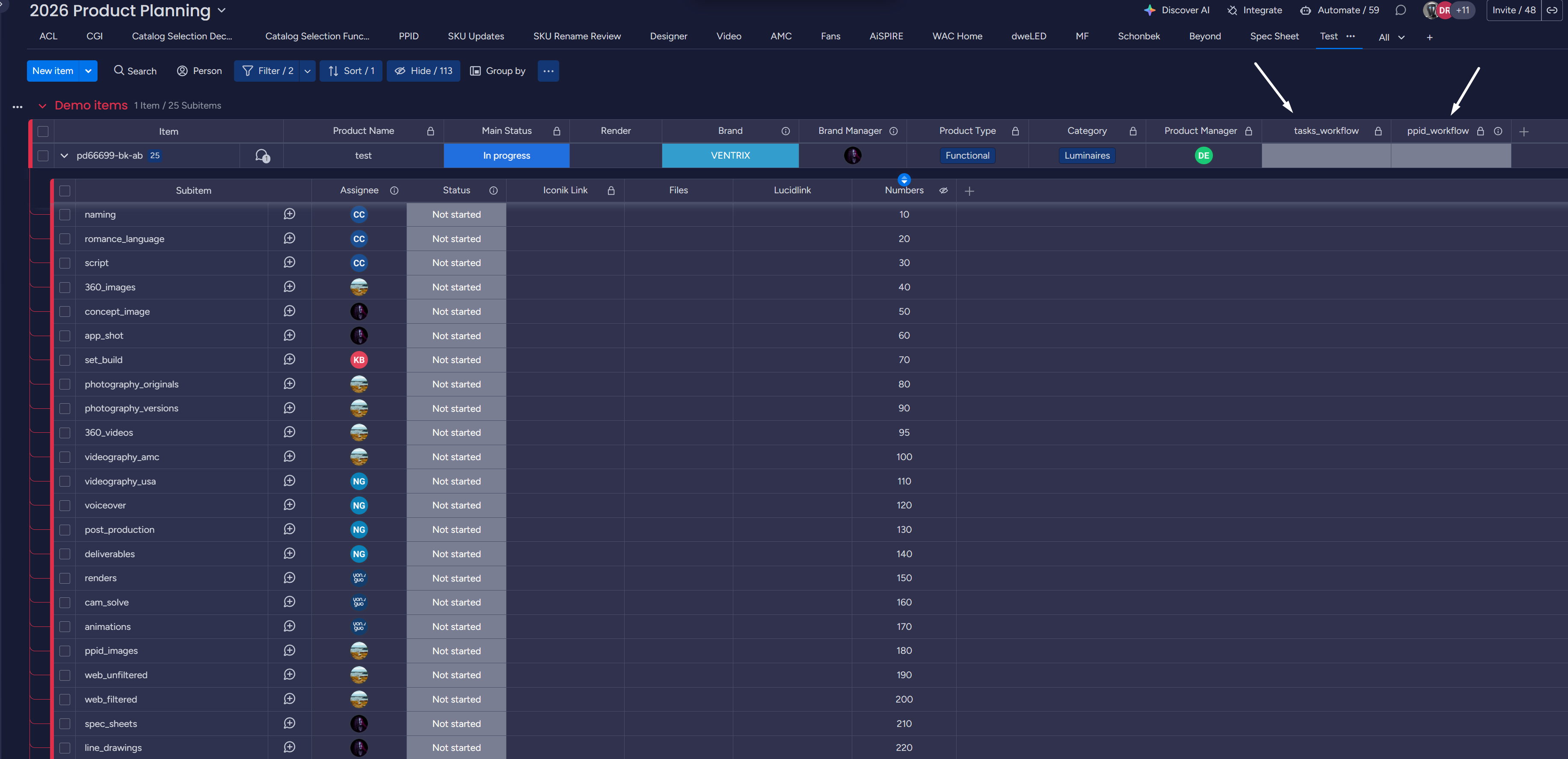
Select eligible items and run task creation one at a time or in a batch.
- If
-
Review the results. Check the
Recently Automatedview and confirm the number of tasks created matches what you expected. Iconik and Monday notify the relevant team members automatically as items and subitems are created, so you do not need to chase anyone manually.
Watch the project manager automations guide:
Troubleshooting
Section titled “Troubleshooting”- A SKU will not advance - confirm every trigger column except AppShot Needed holds a Yes or No. A single blank stops folder and task creation.
- A concept image did not start - AppShot Needed reading
Yesis not enough on its own. Check thatApp Shot Settingcarries exactly one hero label and thatApp Shot Notesis filled. See App Shot Setting. - A subitem like
photography_versiondid not appear - occasionally a single subitem does not auto-create. Reach out to your project manager or pipeline supervisor. - Folder automation returned
Failed- a partial run, expected when not every team needs folders. See the folder result table above and the automation ecosystem. - A column flipped on its own - functional SKUs auto-flip dependent columns to
No. See the functional behavior list above.