
Iconik setup
Iconik is WAC’s Media Asset Management (MAM) solution. It integrates with LucidLink (our central cloud storage) and mirrors back the exact folders and assets on LucidLink. It is where images and videos are reviewed across teams, and it generates the share links that flow back into Monday. That handoff is what keeps visual review automated and assets organized on both the Marketing Creative Requests (MCR) and Product Planning (NPI) boards.
Log in
Section titled “Log in”You will receive an email invitation to sign in to Iconik and choose your password.
If you did not receive an email invitation, reset your password instead:
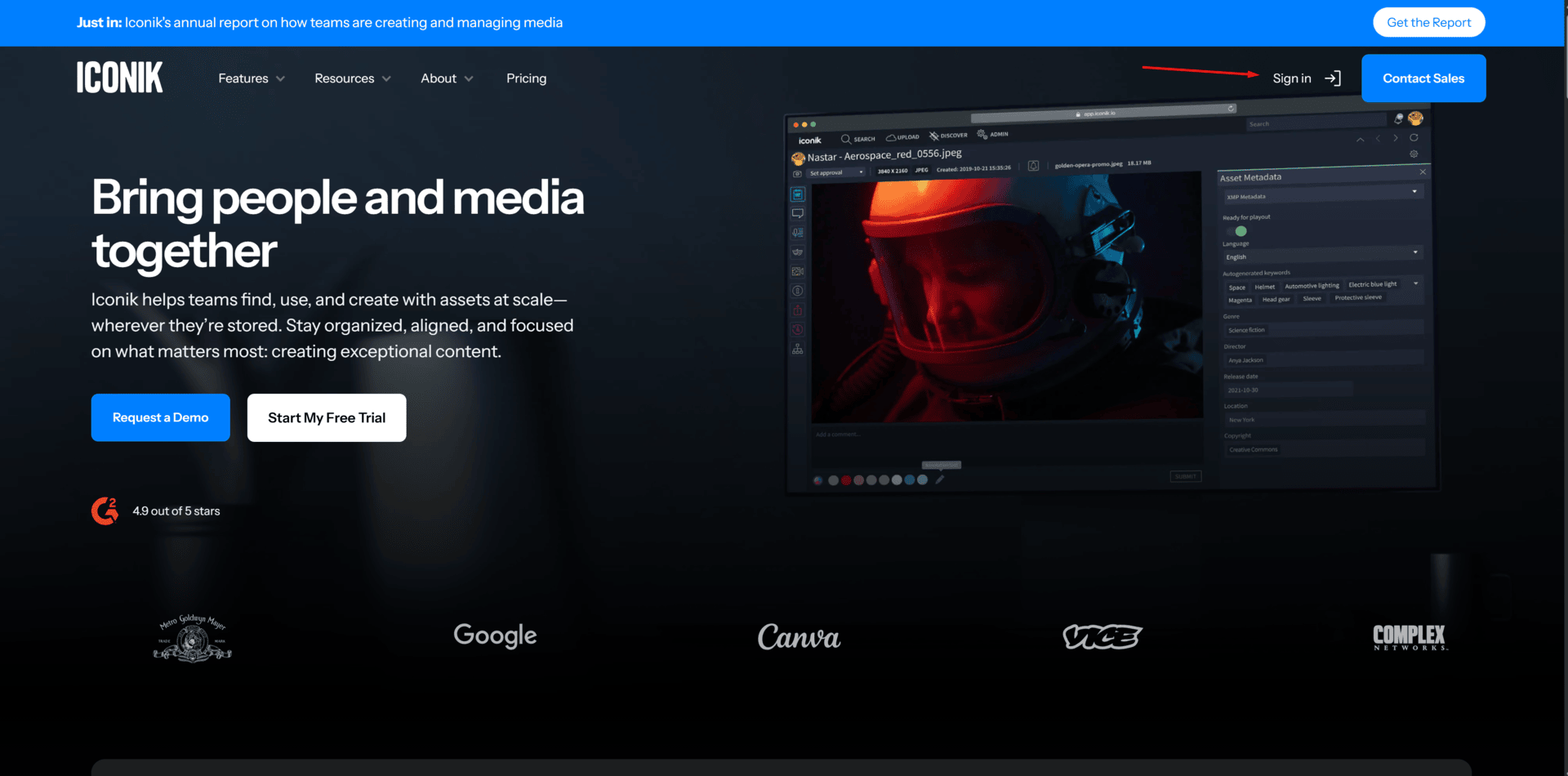
- Go to iconik.io and click Sign in in the top-right corner.
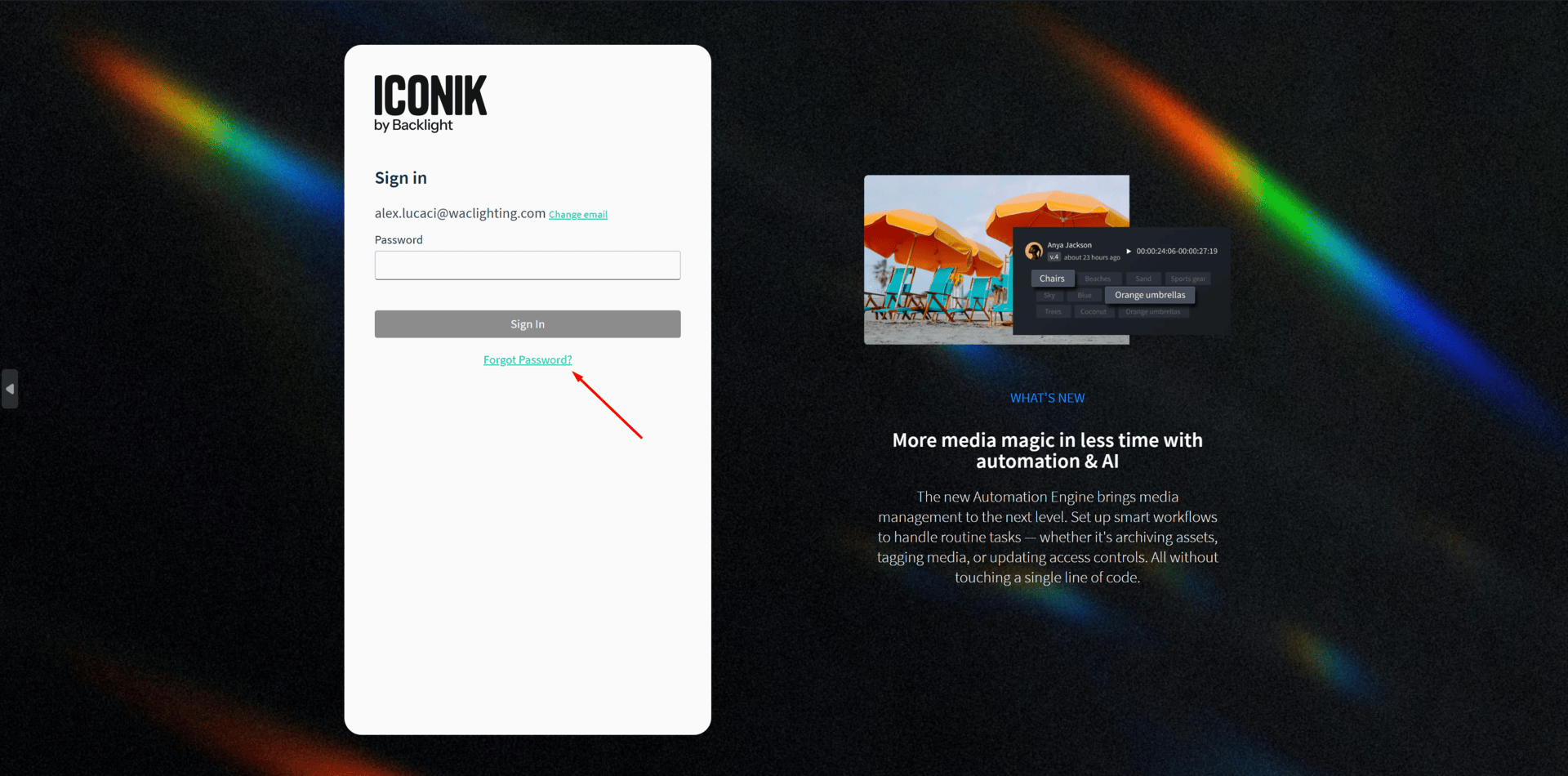
- Type in your WAC Lighting work email.
- Click Forgot Password and enter your work email again when prompted. A reset link is sent to your inbox.
The Iconik web browser
Section titled “The Iconik web browser”A quick introduction to navigating the Iconik web UI:
Install the agent
Section titled “Install the agent”- Download the Iconik Agent for your OS.
- Run the installer.
Configure mount points
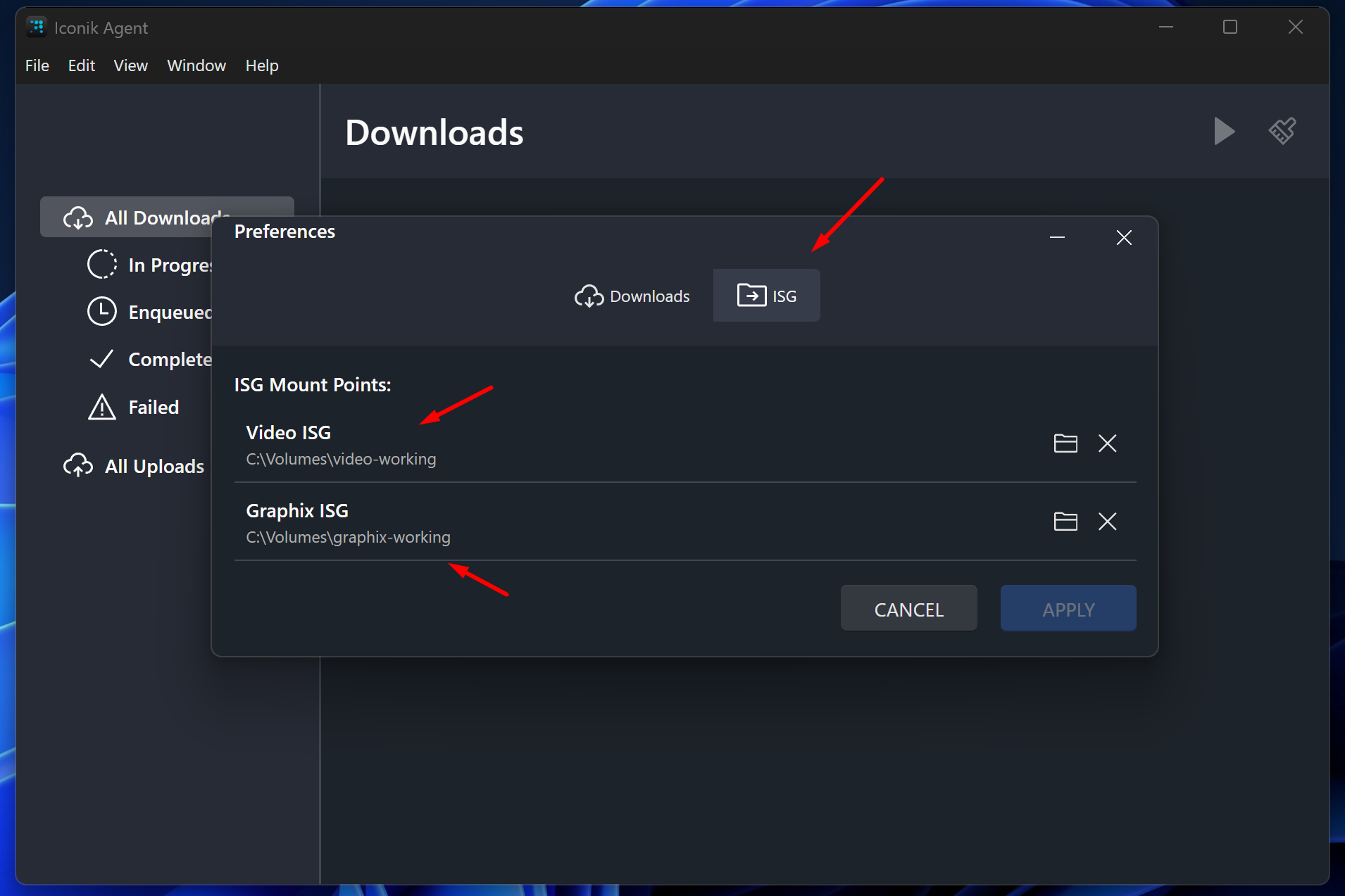
Section titled “Configure mount points”Set up the agent mount points at the root of each filespace.
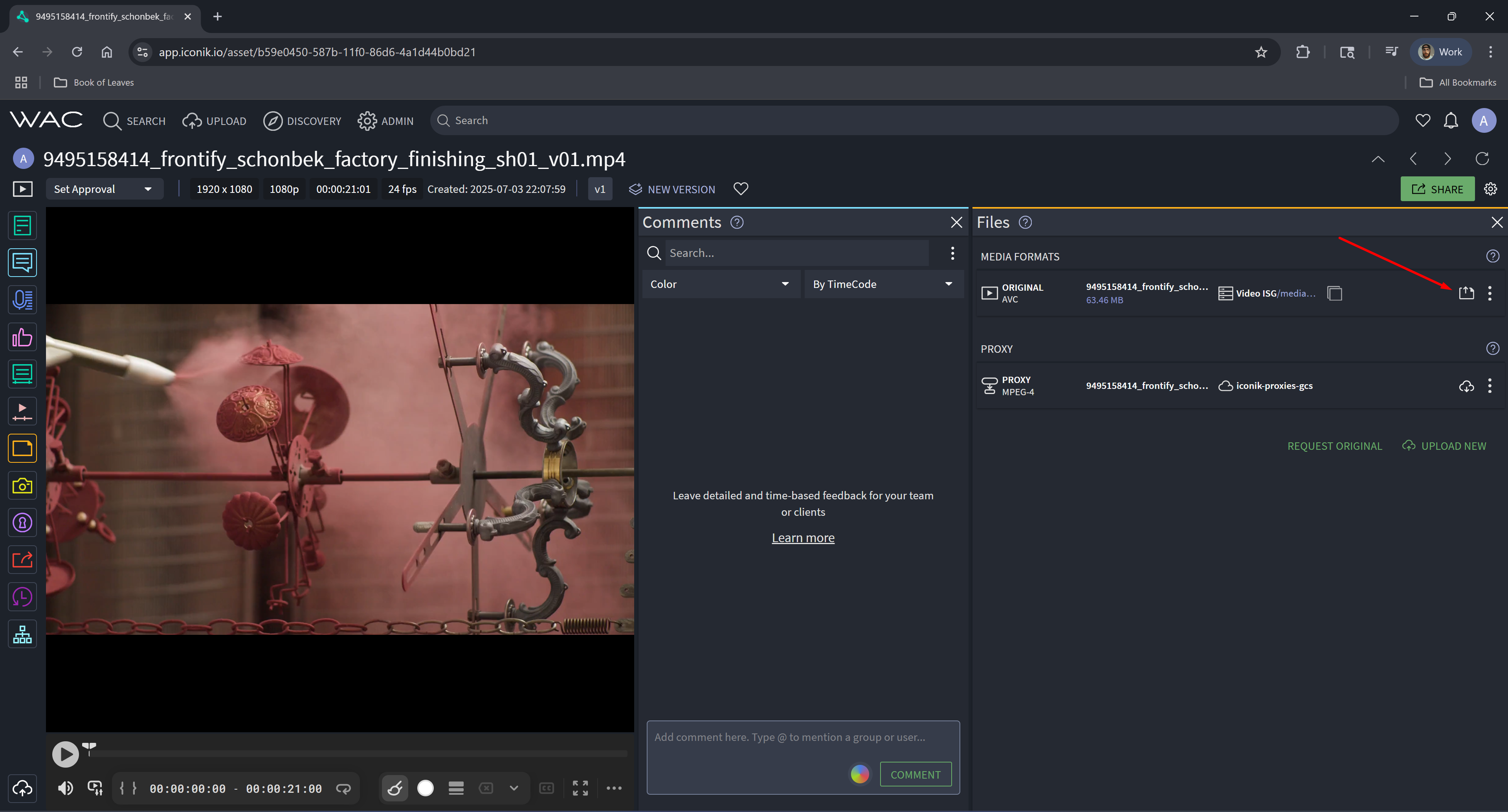
- Open an asset in the Iconik web browser and click the icon with the up arrow.
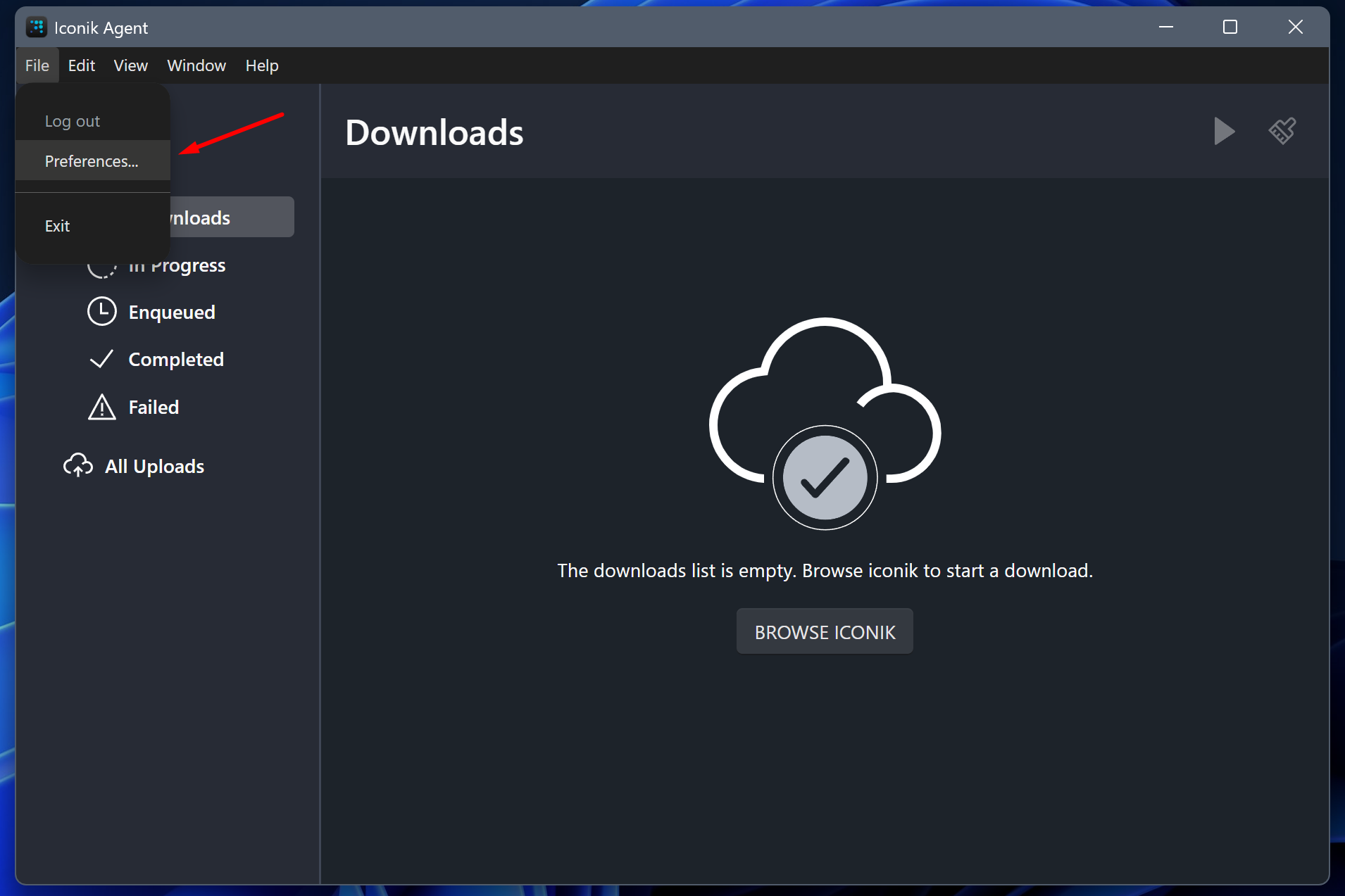
- If you are not prompted, go to File → Preferences.
- Click the ISG tab and set up the mount points at the root of each filespace.
Verify
Section titled “Verify”Open a known asset in Iconik and confirm it previews. For issues with failed assets not transcoding in Iconik, reach out to Noah Gomez.
→ Reviewing product images? See Iconik Review Process.