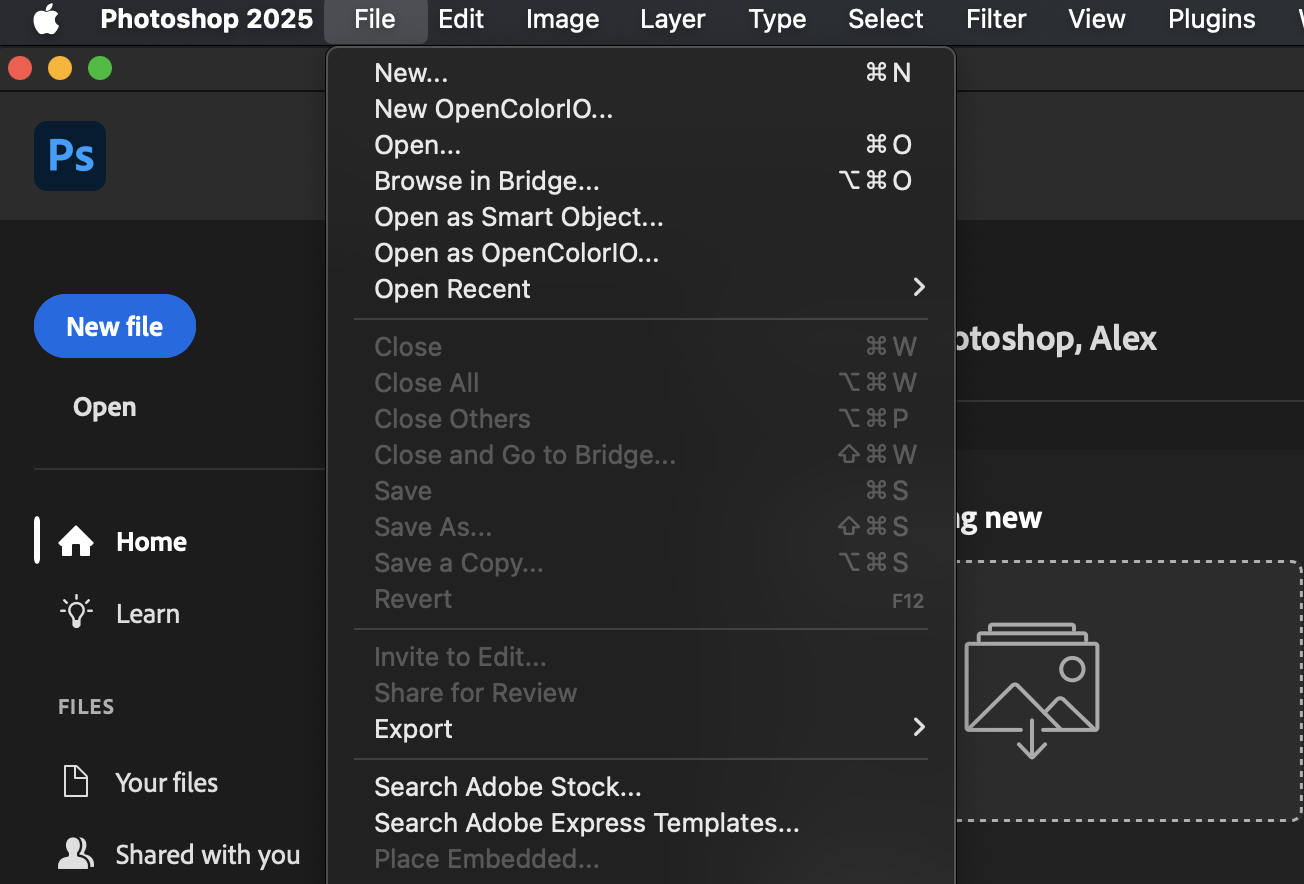
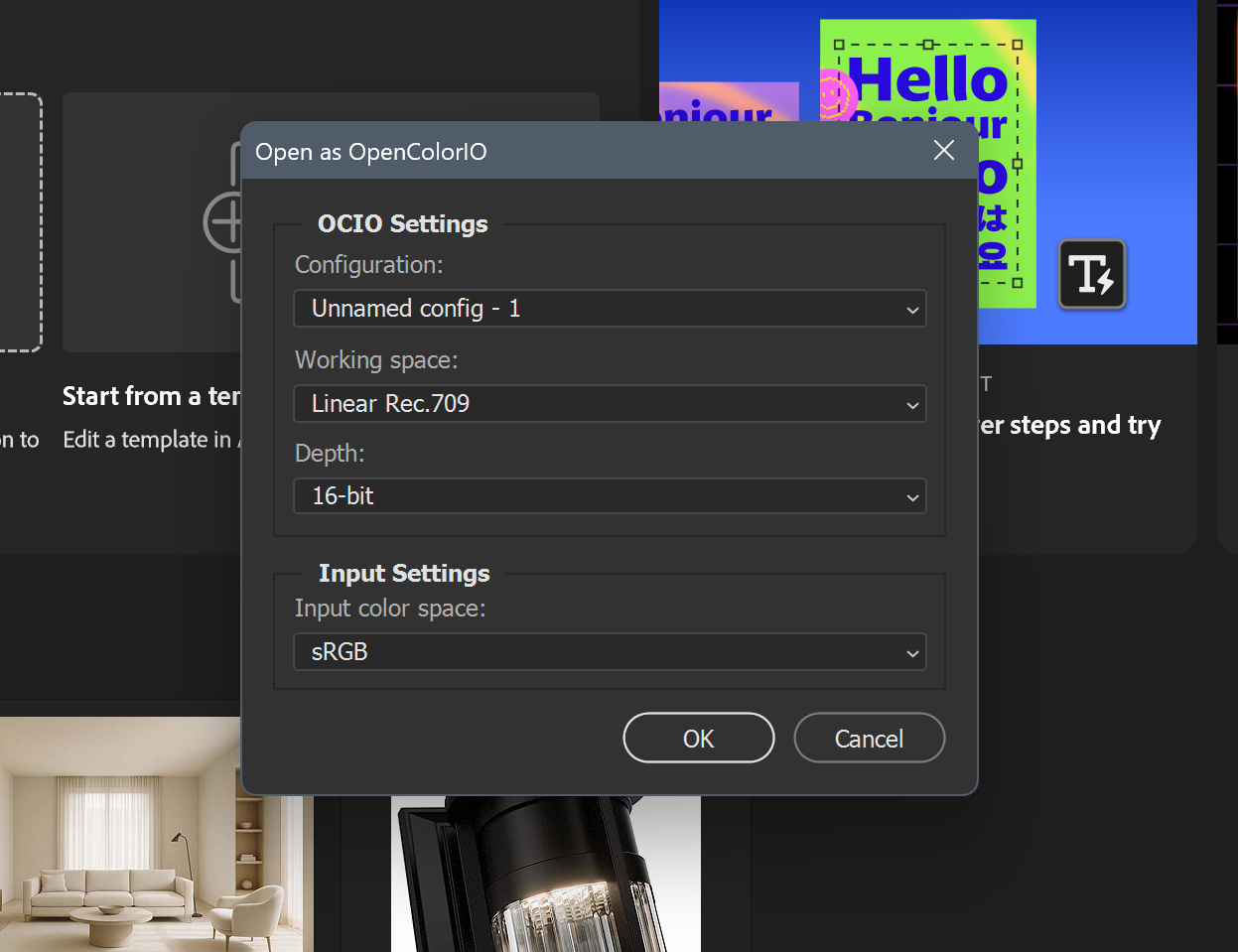
OCIO color management
OCIO (OpenColorIO) keeps color consistent across all apps, from renders and masks to textures and final comps. This setup ensures what you see in Photoshop matches what came out of Blender for accurate display. Required for Designers and CG Artists.
Configure
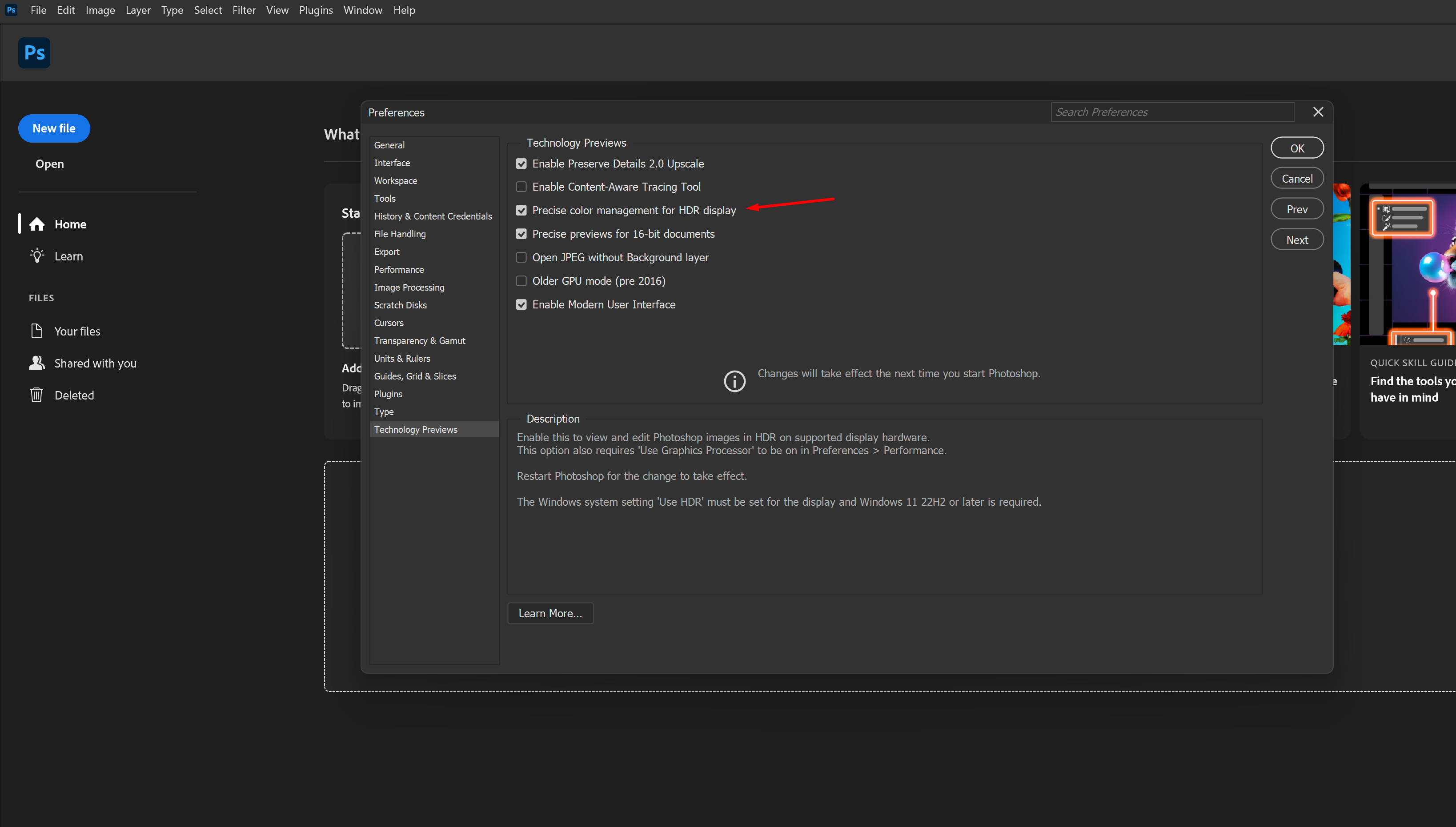
Section titled “Configure”1. Enable HDR color management
Section titled “1. Enable HDR color management”- Go to
Preferences > Technology Previews. - Enable Precise Color Management for HDR display.
- Click OK.
2. Configure OCIO
Section titled “2. Configure OCIO”For the steps below, point Photoshop to the LucidLink path destination found in this link: OCIO Config File.
- Go to
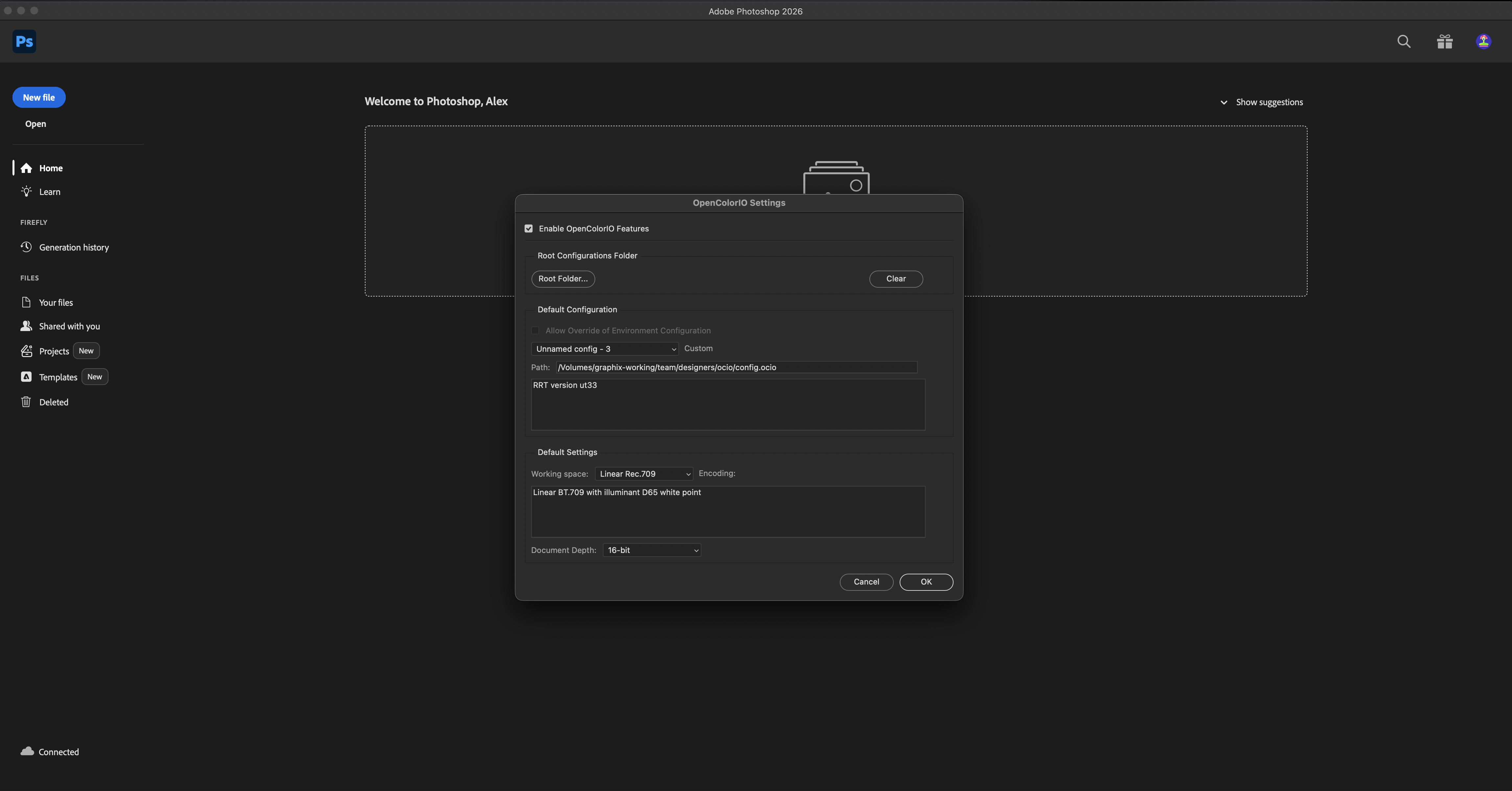
Edit > OpenColorIO Settings. - Enable OpenColorIO Features.
- Under Configuration, switch from default to Custom.
- Locate and select the
config.ociofile (the shared OCIO folder). - Enable Allow Override of Environment Configuration.
- Update to Custom Path
/Volumes/graphix-working/team/designers/ocio/config.ocio. - Set Working Space to
Linear Rec.709. - Set Document Depth to
16-bit. - Click OK.
3. Restart Photoshop
Section titled “3. Restart Photoshop”A full quit and relaunch is required to apply the settings.
Verify
Section titled “Verify”Open a reference asset; colors should match the expected appearance with no warnings. If you see errors, the OCIO config did not load properly. Double-check:
- HDR color management is enabled.
config.ociois correctly linked.- File depth is set to 16-bit.