
Monday board navigation
The unified Product Planning (NPI) board is where the design, video, and CG teams see what needs their attention. This page covers how the board is laid out, how the automations fit in, and how to set up filtered views so you only see your own to-dos.
For the difference between this board and the Marketing Creative Requests board, see the two boards.
Overview of the workflows and automations
Section titled “Overview of the workflows and automations”This walkthrough covers the entire workflow for the graphic design and video team. Anything the video does not answer is covered in the rest of the documentation.
How automations fit the board
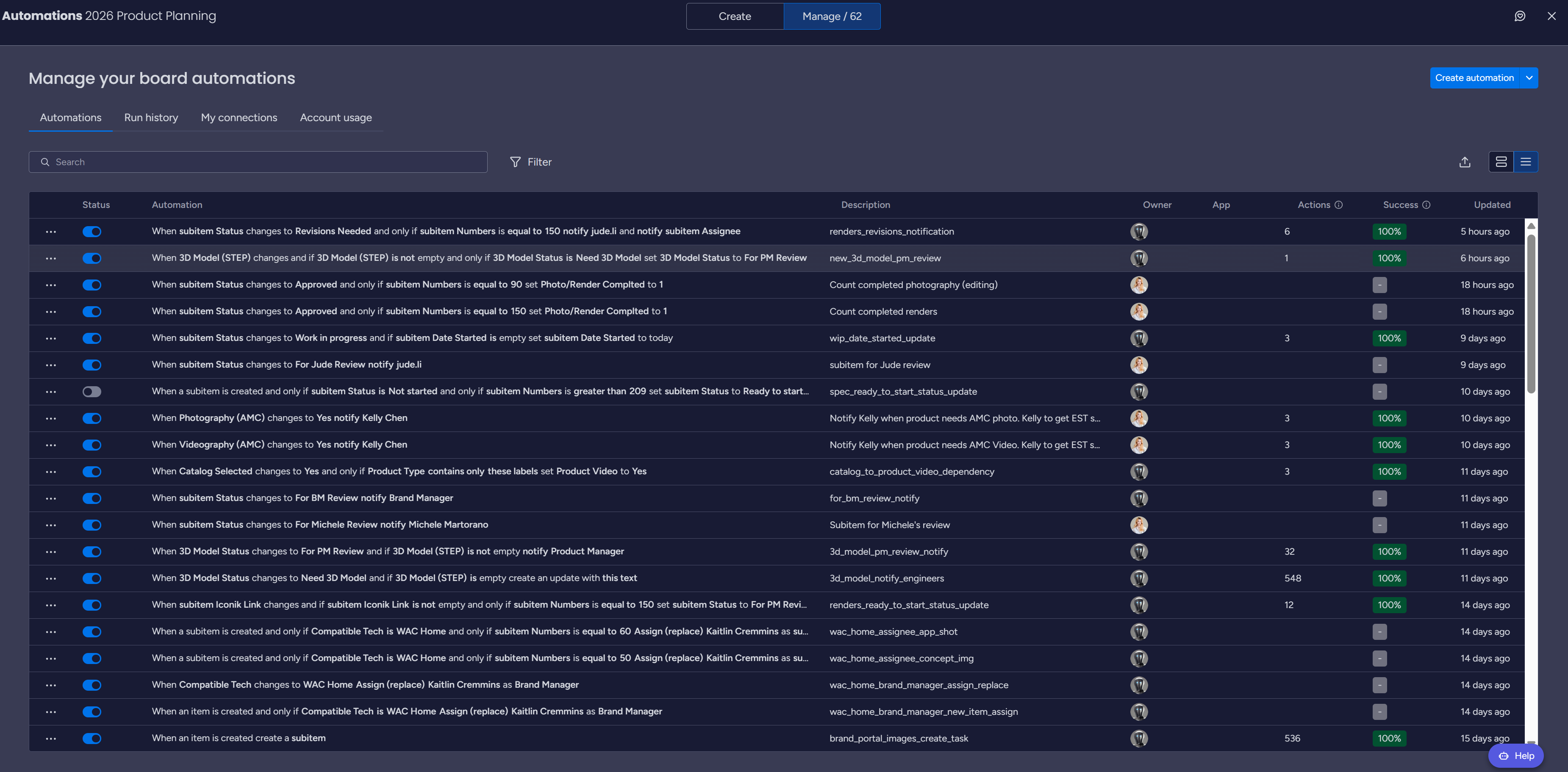
Section titled “How automations fit the board”You do not trigger most automations by hand. They react to the columns and statuses on the board. There are two systems that act on this board, explained in full in the automation ecosystem:
-
Monday-native automations handle the routine work: moving items when a status changes, assigning team members when a subitem is created, updating cells and formulas, and notifying the relevant people. These run in the background. You generally do not trigger them: just keep your statuses up to date.
-
MIFFED builds the LucidLink folder structure from board triggers. Setting the catalog decisions and flipping the folder and task triggers is a PM step, documented in PM catalog pre-selection.
Finding your to-dos
Section titled “Finding your to-dos”Your work shows up as subitems under each top-level SKU. To see only what is assigned to you, set up a filtered view.
-
Open the Product Planning board. Start from the top of the board so you can see the available views and the filter controls.
-
Filter to your assignments. Filter by
Assignee(you) and by the status that means a task is ready for you, such asReady to startorFor PM Review. Status meanings are defined in the status glossary. -
Save the filtered view. Save it so you can return to your personal to-do list without rebuilding the filter each time.
-
Work top to bottom. Update each subitem status as you go. Because the automations and notifications react to status, keeping statuses current is what keeps the board, folders, and reviews in sync.
Troubleshooting
Section titled “Troubleshooting”- I cannot find my tasks - confirm your filtered view is filtering by your
Assigneeand a ready status, not an already-completed one. - A status will not advance the item - check that the status matches what the automation expects. See the status glossary and the automation ecosystem.
- An automation seems wrong - do not edit it in place. Route it to the board owner so it is not changed in a way that conflicts with MIFFED.